Tuesday, March 31, 2009

Tagging - What & Why

What
Tagging is a method of organization - nothing more, nothing less. It's just a way for you to organize your pictures (Flickr), bookmarks (del.icio.us) and blog posts (blogger). It's similar to organization with folders, but instead of putting a picture in a folder, you are attaching a tag (or label) to the picture. This means that instead of having a picture that may cover several different subjects in one folder, you can "tag" that picture with several different tags and find it using any one of them.

Tagging is also social. When you tag a picture in Flickr, you are giving others a way to find that picture. You can do a search at Flickr for all pictures tagged "library" and find all kinds of images of libraries, inside of libraries, around libraries or of personal book/movie/dvd libraries. Whatever anyone decided fit the label of "library" will show up in a search. This also means that once you tag an image with a particular tag/label you can find other images that use that same tag.

Why
Why tag items?
  • To make them easy to find again - organization!
  • To make them easy for others to find - sharing!

Monday, March 30, 2009

Tagging - Where

Where?
  • Flickr
    • MRRL's photos - those tagged with "Linn" show up on the Osage County homepage (http://www.mrrl.org/osage/)
  • del.icio.us
    • MRRL's reference links (http://del.icio.us/mrrl?setcount=25)
  • blogger (categories)
    • Blogger doesn't have real categories like other blog software does, but it does allow labeling (tagging) for individual posts that can work like categories
  • some library catalogs - AADL
    • Tag books for others to find in the catalog
    • Makes more sense than Library of Congress subject headings to some people

Friday, March 27, 2009

Tagging - How

How - General
Enter keywords into a text field offered by the site.

How - Specific
Del.icio.us - enter keywords separated by a space. This means that no multiple word tags are allowed. Use CamelCase or underscores (_) to separate words.
Flickr - enter keywords using quotation marks to connect phrases, eg. "New York City" would be one keyword. Multiple word tags are acceptable - this makes it harder to choose a single tag that everyone can agree on for a specific idea.

Thursday, March 26, 2009

Tagging In del.icio.us

Tag for yourself
Tagging in del.icio.us offers you the chance to organize bookmarks so that they make sense to you. It's more efficient than the folders that are offered by browsers because you can tag one single bookmark with several "labels" and find that bookmark through any of those tags.

Tag for others
Many people will tag bookmarks in del.icio.us so that not only they, but other del.icio.us users will be able to find them.

Use others' tags

Friday, April 13, 2007

Flickr - Your Profile

Your profile on flickr tells other users some information about you.

It's not required that you put any additional information in your profile, but you can add:

  • First Name
  • Last Name
  • Time Zone
  • Gender
  • Singleness
  • Description
  • Website address (can not be commercial)
  • Website Name
  • Instant Messenger user names (Yahoo, AOL, MSN, ICQ)
  • Occupation
  • Hometown
  • Current City
  • Country
  • Interests
  • Favorite Authors, Books
  • Movies
  • Music & Artists

You can also edit:

  • your "buddy icon" (or avatar); a small 48x48 pixel picture that shows up in your profile, comments and discussion post
  • your screen name
  • who can see your contact information - email address


Flickr - commenting

Part of what makes Flickr great (and Web2.0) is the ability to view and comment on other members pictures and have other members comment on your photos.

You can see recent comments left on your photos and that you left on your home page. There will be a little flag and it will say "new comments" clicking the link will take you to the photo with comments.


You can also leave comments on photos of other people.


Flickr - Contacts

What are contacts?
Contacts are your "friends" on flickr. From your home page you'll see new pictures uploaded by your contacts. You can set limits on your photos based on your contact settings.

How do you create contacts?
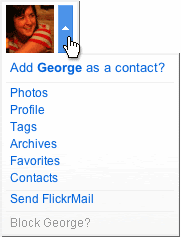
There are two ways, the first is while looking at some one's photos, move your mouse over their buddy icon, click the drop down menu and select the add as contact option.


The second is while looking at a user's profile click the "add [user] as a contact" link.

For either way the next step will prompt you to select "family" or "friends" you can click one, both or neither of these boxes.

This allows you some privacy and control over who views your pictures. When you're uploading pictures you can choose who can view then - everyone, only you, friends or family.

You an also limit who can comment, print and blog your photos based on the contact setting.