Showing posts with label privacy. Show all posts

Sunday, April 26, 2009

Editing Your Name

You can edit both your real name and your display name on Myspace.

Using your real first and last name allows friends and associates to locate your myspace account and add you as a friend.

Your display name is just a nickname. You can pick anything you like to display people will still be able to find you using your real first and last names.

If you are concerned about privacy,
  • First and Last does not show up anywhere that the public can see it.
  • You can put false information in the First and Last name sections.
To edit your name
1. Click "edit profile" from your dashboard.


2. Click on the "name" tab at the top.

3. Enter your information and save changes

Saturday, April 25, 2009

Privacy Settings

Myspace offers several different privacy settings to control the level of information you share on your account.

To get to the Privacy Settings from your Dashboard click on "account settings"


From this page click on "privacy settings"

From here you can change a number of settings


  1. Who can view my profile
    1. Friends only
    2. Public - everyone
    3. only users over 18
  2. Privacy settings
    1. Friends requests - require users sending you a friend request to know your last name or email address
    2. Comments - approve all before they who in public view
    3. Hide online now - do not allow other users to know when you're online
    4. Show Birthday to friends
    5. Photos - no forwarding - do not allow users to forward your photos
    6. Blog comments - friends only - only users who are your friends are allowed to comment on blog posts
      1. Blog posts also have a setting that allow only friends to be able to read them
    7. Friend requests - no bands
    8. Block users under 18 from contacting me
  3. Group invite privacy settings
  4. Event invite privacy settings


Friday, April 24, 2009

Adding pictures of You

You can upload pictures to Myspace.
  • Photos may not contain nudity, violent or offensive material, or copyrighted images. If you violate these terms your account will be deleted.
  • Photos must be less than 5MB and in either GIF or JPG format.
  • Everyone can see your default photo
From your Dashboard click on "add/edit photos"

From here you can upload photos and create albums


  • Your default photo shows up as your avatar and everyone can see it even if your account is set to private. It will show up on your friends page and in an abbreviated version of your pages.
  • To view other users photo click on the link below their picture.


Friday, April 13, 2007

Flickr - Contacts

What are contacts?
Contacts are your "friends" on flickr. From your home page you'll see new pictures uploaded by your contacts. You can set limits on your photos based on your contact settings.

How do you create contacts?
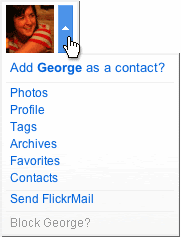
There are two ways, the first is while looking at some one's photos, move your mouse over their buddy icon, click the drop down menu and select the add as contact option.


The second is while looking at a user's profile click the "add [user] as a contact" link.

For either way the next step will prompt you to select "family" or "friends" you can click one, both or neither of these boxes.

This allows you some privacy and control over who views your pictures. When you're uploading pictures you can choose who can view then - everyone, only you, friends or family.

You an also limit who can comment, print and blog your photos based on the contact setting.