Thursday, April 30, 2009

Profile overview

This the public view of your profile, it is what your friends and anyone else see when they look at your page.

Information displayed on page by layout (please note some background coding will change where this information displays on the page but this layout is the most common)

Upper left:
  • View any pictures or videos you've uploaded
  • Send message
  • Add to friends
    • When you add someone to your friends they have to accept the request
  • Instant message
  • And more
Upper Right
  • Blog posts
  • About me
  • Who I'd like to meet
Middle left:
  • General interests
  • Music
  • Movies
  • Television
  • Heroes
Middle Right:
  • Friends
Lower Left:
  • Details - sign, hometown, relationship status, education, sexual orientation, reason on myspace,
Lower Right:
  • Comments

Wednesday, April 29, 2009

Dashboard Overview


This is the page you see when you sign in to your myspace account.

From here you can:
  • view/post bulletins
  • view friends
  • edit name
  • edit privacy setting
  • add pictures of yourself
  • edit background
  • add book jackets/movie cover etc
  • add/edit background

Tuesday, April 28, 2009

Bulletins

What are bulletins? When you want to send the same message to all of your myspace friends you use a bulletin. It automatically goes to everyone on your friends list. Bulletins expire after 10 days.

You'll also receive bulletins from your friends.


Monday, April 27, 2009

Viewing Friends

You can see you friends two ways from your Dashboard


Or from your Public view.


Sunday, April 26, 2009

Editing Your Name

You can edit both your real name and your display name on Myspace.

Using your real first and last name allows friends and associates to locate your myspace account and add you as a friend.

Your display name is just a nickname. You can pick anything you like to display people will still be able to find you using your real first and last names.

If you are concerned about privacy,
  • First and Last does not show up anywhere that the public can see it.
  • You can put false information in the First and Last name sections.
To edit your name
1. Click "edit profile" from your dashboard.


2. Click on the "name" tab at the top.

3. Enter your information and save changes

Saturday, April 25, 2009

Privacy Settings

Myspace offers several different privacy settings to control the level of information you share on your account.

To get to the Privacy Settings from your Dashboard click on "account settings"


From this page click on "privacy settings"

From here you can change a number of settings


  1. Who can view my profile
    1. Friends only
    2. Public - everyone
    3. only users over 18
  2. Privacy settings
    1. Friends requests - require users sending you a friend request to know your last name or email address
    2. Comments - approve all before they who in public view
    3. Hide online now - do not allow other users to know when you're online
    4. Show Birthday to friends
    5. Photos - no forwarding - do not allow users to forward your photos
    6. Blog comments - friends only - only users who are your friends are allowed to comment on blog posts
      1. Blog posts also have a setting that allow only friends to be able to read them
    7. Friend requests - no bands
    8. Block users under 18 from contacting me
  3. Group invite privacy settings
  4. Event invite privacy settings


Friday, April 24, 2009

Adding pictures of You

You can upload pictures to Myspace.
  • Photos may not contain nudity, violent or offensive material, or copyrighted images. If you violate these terms your account will be deleted.
  • Photos must be less than 5MB and in either GIF or JPG format.
  • Everyone can see your default photo
From your Dashboard click on "add/edit photos"

From here you can upload photos and create albums


  • Your default photo shows up as your avatar and everyone can see it even if your account is set to private. It will show up on your friends page and in an abbreviated version of your pages.
  • To view other users photo click on the link below their picture.


Thursday, April 23, 2009

Add a Background

Myspace allows users to add html coding to the profile to change the background on their page.

To change your background
Locate code
  • use a search engine to search for free myspace layout, template or background
  • On another users page click on the link for their layout, most will say "click here to get a free myspace layout" or "I got this layout from ... get your own here"
  • Select the look you like
  • copy the html
  • From your dashboard click "edit profile"

Paste the code in one of your profile boxes and click "save all changes"


Thursday, April 2, 2009

Tagging - Definition

Definition

A tag is a (relevant) keyword or term associated with or assigned to a piece of information (like picture, article, or video clip), thus describing the item and enabling keyword-based classification of information it is applied to.

Tags are usually chosen informally and personally by the author/creator or the consumer of the item — i.e. not usually as part of some formally defined classification scheme. Tags are typically used in dynamic, flexible, automatically generated internet taxonomies for online resources such as computer files, web pages, digital images, and internet bookmarks (both in social bookmarking services, and in the current generation of web browsers - see Flock). For this reason, "tagging" has become associated with the Web 2.0 buzz.

Typically, an item will have one or more tags associated with it.


Tagging Example

A web page hosted on a web server or blog server which supports tagging, might have the tags Baseball, Red Sox, Tickets, Away Games, and Discounts. A human reader can probably tell the purpose of the page by quickly scanning the list of tags. Typically, the server would display the tags in a list on that page, with each tag displayed as a web link leading to an index page listing all web pages which use that tag. This allows a reader to locate quickly all pages which have been associated with the term Red Sox. If the server supports tag searching, a reader would be able to find all pages that use a particular set of tags, such as Red Sox and Tickets.

If the page's author wishes to reclassify the page, all that is required is for them to change the list of tags. In this case, the author could add the tags Blue Jays, and Paypal to their page. All connections between pages are automatically tracked and updated by the server software. There is no need to relocate the page within a complex hierarchy of categories.

Wednesday, April 1, 2009

Tagging - Who

You!
Tagging is an uncontrolled vocabulary that you choose to describe "stuff". This makes it a bottom-up vocabulary, instead of a top-down vocabulary like the Library Of Congress' subject headings.
Pros
You can decide what terms to use to describe things - terms that make sense to you.

Cons

Other people may use different terms, or misspelled terms, to describe the same "stuff".

Tuesday, March 31, 2009

Tagging - What & Why

What
Tagging is a method of organization - nothing more, nothing less. It's just a way for you to organize your pictures (Flickr), bookmarks (del.icio.us) and blog posts (blogger). It's similar to organization with folders, but instead of putting a picture in a folder, you are attaching a tag (or label) to the picture. This means that instead of having a picture that may cover several different subjects in one folder, you can "tag" that picture with several different tags and find it using any one of them.

Tagging is also social. When you tag a picture in Flickr, you are giving others a way to find that picture. You can do a search at Flickr for all pictures tagged "library" and find all kinds of images of libraries, inside of libraries, around libraries or of personal book/movie/dvd libraries. Whatever anyone decided fit the label of "library" will show up in a search. This also means that once you tag an image with a particular tag/label you can find other images that use that same tag.

Why
Why tag items?
  • To make them easy to find again - organization!
  • To make them easy for others to find - sharing!

Monday, March 30, 2009

Tagging - Where

Where?
  • Flickr
    • MRRL's photos - those tagged with "Linn" show up on the Osage County homepage (http://www.mrrl.org/osage/)
  • del.icio.us
    • MRRL's reference links (http://del.icio.us/mrrl?setcount=25)
  • blogger (categories)
    • Blogger doesn't have real categories like other blog software does, but it does allow labeling (tagging) for individual posts that can work like categories
  • some library catalogs - AADL
    • Tag books for others to find in the catalog
    • Makes more sense than Library of Congress subject headings to some people

Friday, March 27, 2009

Tagging - How

How - General
Enter keywords into a text field offered by the site.

How - Specific
Del.icio.us - enter keywords separated by a space. This means that no multiple word tags are allowed. Use CamelCase or underscores (_) to separate words.
Flickr - enter keywords using quotation marks to connect phrases, eg. "New York City" would be one keyword. Multiple word tags are acceptable - this makes it harder to choose a single tag that everyone can agree on for a specific idea.

Thursday, March 26, 2009

Tagging In del.icio.us

Tag for yourself
Tagging in del.icio.us offers you the chance to organize bookmarks so that they make sense to you. It's more efficient than the folders that are offered by browsers because you can tag one single bookmark with several "labels" and find that bookmark through any of those tags.

Tag for others
Many people will tag bookmarks in del.icio.us so that not only they, but other del.icio.us users will be able to find them.

Use others' tags

Friday, April 13, 2007

Flickr - Your Profile

Your profile on flickr tells other users some information about you.

It's not required that you put any additional information in your profile, but you can add:

  • First Name
  • Last Name
  • Time Zone
  • Gender
  • Singleness
  • Description
  • Website address (can not be commercial)
  • Website Name
  • Instant Messenger user names (Yahoo, AOL, MSN, ICQ)
  • Occupation
  • Hometown
  • Current City
  • Country
  • Interests
  • Favorite Authors, Books
  • Movies
  • Music & Artists

You can also edit:

  • your "buddy icon" (or avatar); a small 48x48 pixel picture that shows up in your profile, comments and discussion post
  • your screen name
  • who can see your contact information - email address


Flickr - commenting

Part of what makes Flickr great (and Web2.0) is the ability to view and comment on other members pictures and have other members comment on your photos.

You can see recent comments left on your photos and that you left on your home page. There will be a little flag and it will say "new comments" clicking the link will take you to the photo with comments.


You can also leave comments on photos of other people.


Flickr - Contacts

What are contacts?
Contacts are your "friends" on flickr. From your home page you'll see new pictures uploaded by your contacts. You can set limits on your photos based on your contact settings.

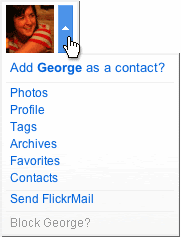
How do you create contacts?
There are two ways, the first is while looking at some one's photos, move your mouse over their buddy icon, click the drop down menu and select the add as contact option.


The second is while looking at a user's profile click the "add [user] as a contact" link.

For either way the next step will prompt you to select "family" or "friends" you can click one, both or neither of these boxes.

This allows you some privacy and control over who views your pictures. When you're uploading pictures you can choose who can view then - everyone, only you, friends or family.

You an also limit who can comment, print and blog your photos based on the contact setting.

Sunday, March 25, 2007

Tagging In Flickr

Flickr allows you to tag your photos at any time. You can tag them as you are uploading them, or do it later. Once you've tagged them, though, there are a LOT of things you can do with the tags in Flickr.


www.flickr.com


More Flickr photos tagged with libraries


This badge uses the tag "libraries" to pull photos from everyone in Flickr. To find photos matching a particular tag, just enter the words you are looking for into the Flickr search box. Click on the tag you want, and view all the photos that Flickr has that are tagged with that label.
The library's website uses Flickr badges to show photos from all the library's collections (www.mrrl.org) and photos from our collection tagged with "Linn" on the Osage site (www.mrrl.org/osage).

Tag Clouds
A tag cloud (or weighted list in visual design) can be used as a visual depiction of content tags used on a website. Often, more frequently used tags are depicted in a larger font or otherwise emphasized, while the displayed order is generally alphabetical. Thus both finding a tag by alphabet and by popularity is possible. Selecting a single tag within a tag cloud will generally lead to a collection of items that are associated with that tag. - Wikipedia, "tag_cloud"

Flickr uses the concept of the tag cloud in their "popular tags" feature. There, you can see the most commonly used tags in the Flickr system, ordered alphabetically, with the most popular tags rendered in the largest type.

Saturday, March 24, 2007

Sets in Flickr

This is the "Organizr" on the Flickr website which allows you to create sets of pictures. A set is just a group of pictures, usually related in some way, that you would like to put together for your visitors. You can use sets in other ways, too - but we'll get to that later.
Free accounts get 3 sets included. Paid accounts get unlimited numbers of sets. To create a set, once you've logged into your Flickr account, go to the "Organize" link at the top of the page to get to the Organizr. From here, you can simply drag and drop pictures from the pic-strip at the bottom of the screen onto the large gray area in the middle of the page. You'll notice that the first image that you put on the screen becomes the "icon" image for that set. You can change this at any time by dragging one of your images from the gray workspace to the icon. That image will then become the image that is used next to the name of your set in your account.

In this screenshot, I've used the 3rd image I included in the set to be the "icon" for the set of pictures of Elizabeth at the library. I've also named the set (Elizabeth) and added a brief description in the yellow sidebar area on the left. Click the blue "Save" button at the bottom of that sidebar, and you have a brand-new set of images that you can do all sorts of interesting things with!

  1. Create a "guest pass" to allow folks without Flickr accounts to see your private photos that you've included in a set. (Share This Set link on the set's page)
  2. Use a set you have created as the photos that you show on your site with a Flickr Badge (more about that later!)
  3. View just the photos in your set as a slideshow.

Friday, March 23, 2007

Flickr - Free vs. Pro

Free:
  • 100 MB monthly upload limit (5MB per photo)
  • 3 sets
  • Photostream views limited to the 200 most recent images
  • Post any of your photos in up to 10 group pools (more on this later)
  • Only smaller (resized) images accessible (though the originals are saved in case you upgrade later)
Pro:
  • Unlimited uploads (10MB per photo)
  • Unlimited storage
  • Unlimited bandwidth
  • Unlimited photosets
  • Permanent archiving of high-resolution original images
  • The ability to replace a photo
  • Post any of your photos in up to 60 group pools
  • Ad-free browsing and sharing